
Blog
Tech Tip: How Your Apple Devices Work Together

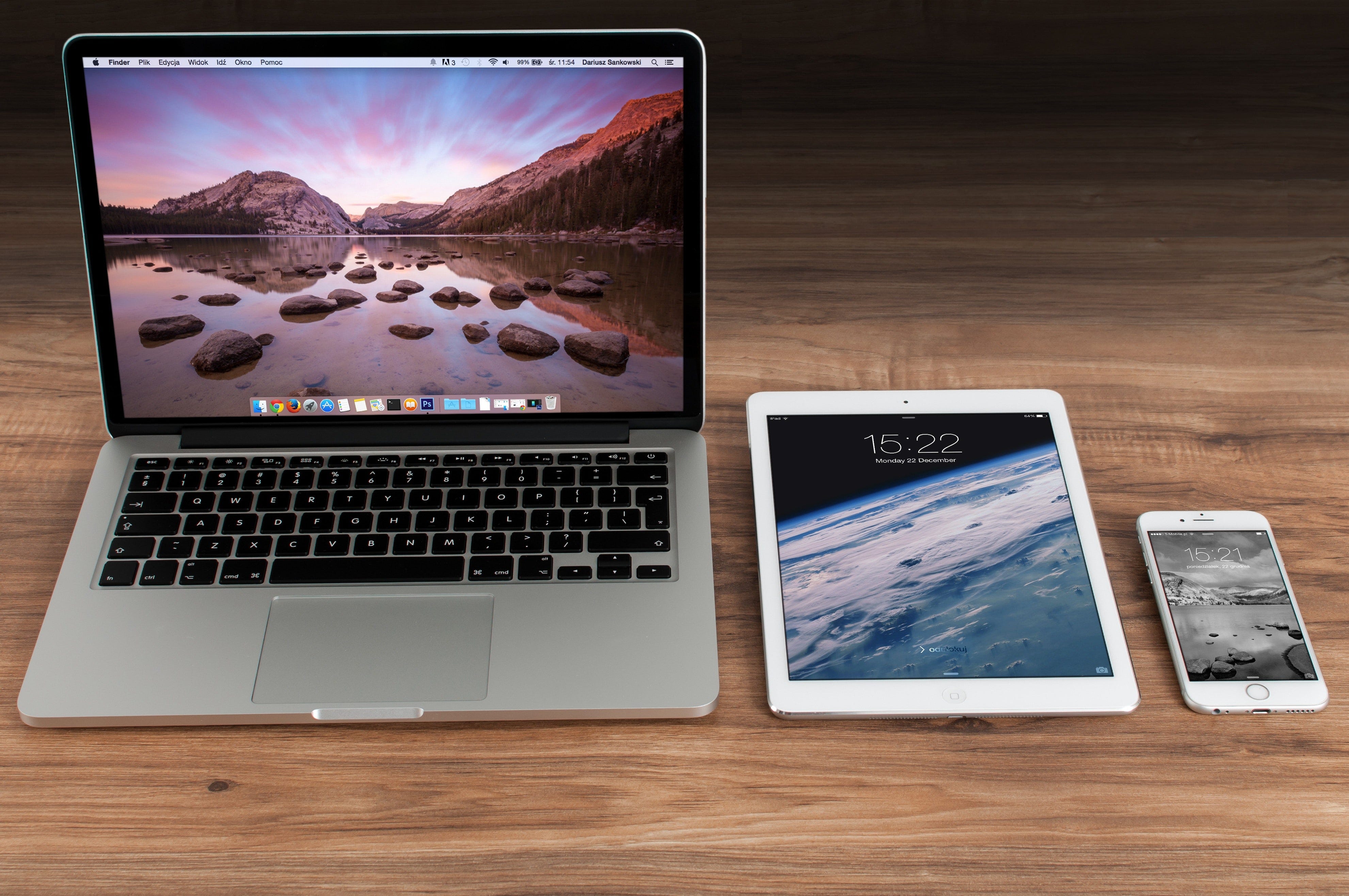
As you already know Apple makes a very durable and reliable product whether it’s a phone, tablet, or a computer. Another thing that Apple does very well is creating its own “Apple Ecosystem”. What this means is that when you combine multiple Apple devices, you can now use programs and features throughout all of them to work together. Below I will go over the most commonly used continuity features and the ones that I personally use in everyday life.
Handoff: This allows you to start a task on one device (like your iPhone) and continue on another (lets say your iMac) whether its an email, picture, note, or even a website.
If you’re on your iMac you will see the app on the dock, and “from iPhone” displayed above it. If you are on your iPhone, iPad, or iPod Touch you can use the App Switcher (Where you typically force close apps you’re not currently using) and a banner at the bottom of the screen will appear saying something such as “From Bob’s iMac” and you can continue from where you left off.

Universal Clipboard: This is the feature I find most useful especially as a business owner. You can copy and paste any text, image, or video from one Apple device onto another.
I use this frequently to move customer information from my iPhone to my iMac in order to input it into our CRM (Customer Relationship Management tool).
Cellular Calls: As long as your devices are all on the same network you can actually make and receive calls on your iMac, iPad, or iPod touch. How freakin’ cool is that?!
I am so happy this is a feature that Apple added because I use it every single day. In business sometimes missing a phone call, means losing money. I don’t like to lose money, so if I miss a phone call because I left my phone on silent I’m going to be pretty upset. This allows me to see a supplier or customer calling on my Apple Watch, iPad, and even my iMac. This helps if i’m doing managerial tasks or inputting customer information into our system or if I am somewhere not close by to my smartphone.
SMS & iMessage Forwarding: You can send and receive your SMS and iMessages from your iPhone on your Mac, iPad, and iPod touch.
This again is something I use very frequently. I am very busy and when my iPhone is charging or if I am working on the computer, I can glance at the message that pops up and decide if it needs to be answered right away without even pulling my phone out of my pocket.
Apple Pay: Start shopping on your iMac and if you so choose, you can pay with Apple Pay using your iPhone or Apple Watch.
This is useful if you use Apple Pay frequently which I do not currently. I do think I will start using it since it does seem more convenient. Overall, Apple Pay is quick and sometimes easier than pulling my debit card out and entering in my pin.
Instant Hotspot: This will allow you toconnect to a hotspot on your iPhone or iPad from your Mac, iPad, iPod touch, or another iPhone, without entering a password.
I am always traveling and not all the hotels I stay at have public WiFi. It also helps when I’m in a pinch and need to quickly edit something i am working on in my car when I’m not around an internet connection.

Auto Unlock Your iMac: If you have Mac OS Catalina and Apple Watch OS 6, you can instantly unlock and use your iMac when wearing your Apple Watch and use it instead of entering your password for other requests.
You did it again Apple!! I don’t know about you, but I enter my computer password 30–100 times per day so this helps me immensely. A secure an innovative feature so +1 to you Apple.
Camera Continuity: You can take a picture or scan a document on your iPhone, iPad, or iPod touch, then you can control-click and import to have it appear instantly on your iMac.
I am constantly taking pictures of phones, computers, and other electronics that i’m selling on ebay and amazon. I have templates saved on my iMac that arent avalible on the mobile version. This way I can start it on the iPhone and just finish it up on the desktop which is very convenient. I use this in combination with Airdrop (we go over this below) to make my life easier when transferring information.
Airdrop: Make sure you have Bluetooth on first,then you can wirelessly send documents, photos, and videos to your or your friends iPhone, iPad, iPod touch, or Mac.